SRM-EC in action
A look at the live channel status board and the Quick Claim Widget as telecommunicators see them.
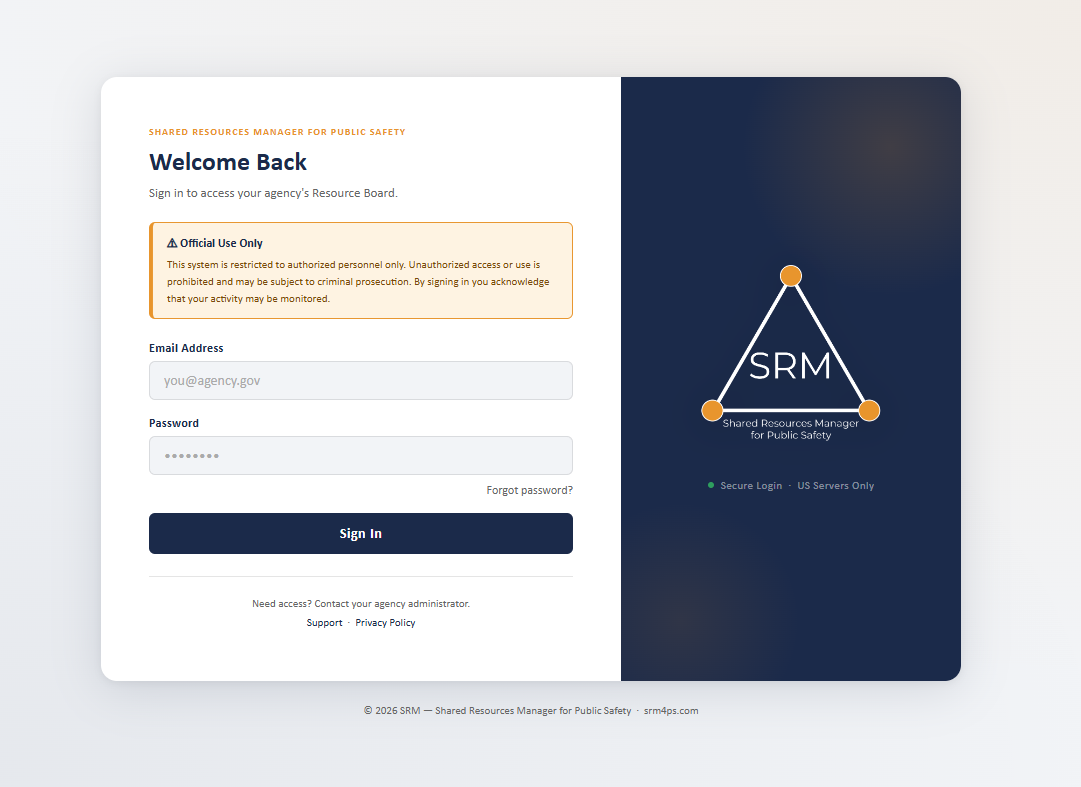
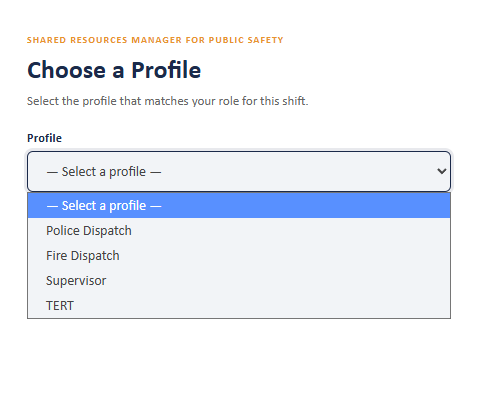
SRM allows users to choose their role when signing in so that the best resources are at hand.
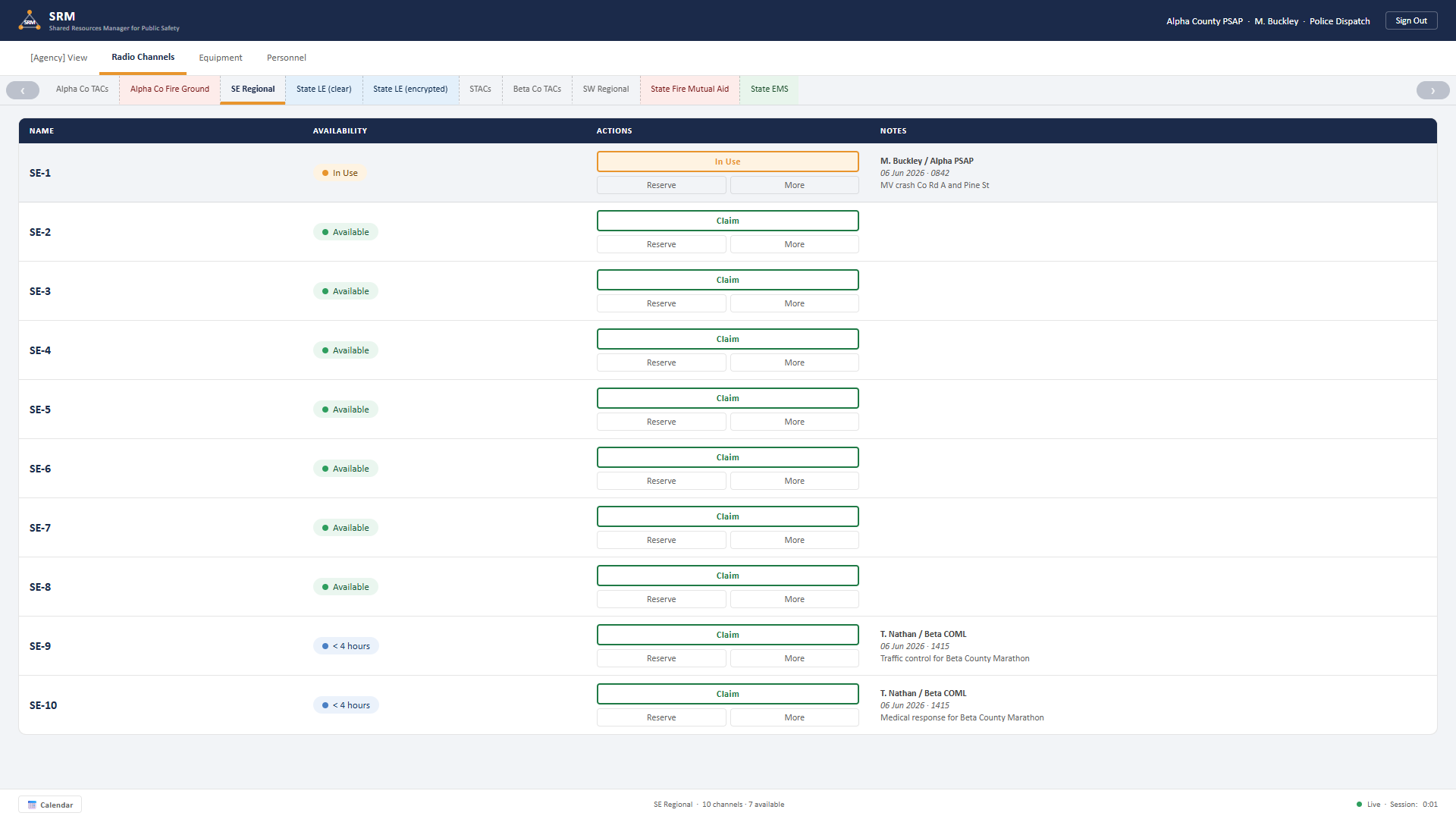
Resources are organized by type and are available to view in a Resource Table. The titles above the table allow for quick navigation between resource types.
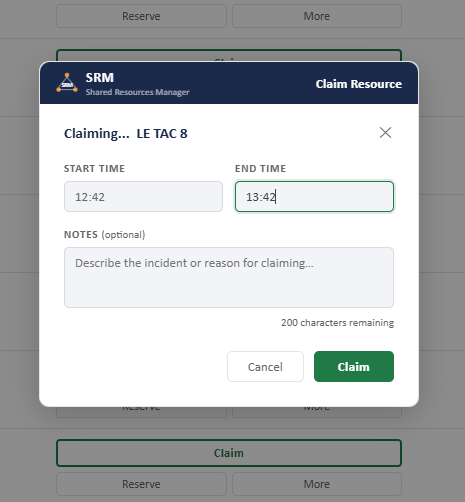
Clicking the claim button opens a window that defaults to one hour. SRM users may change the time, add notes, or just hit the claim button.
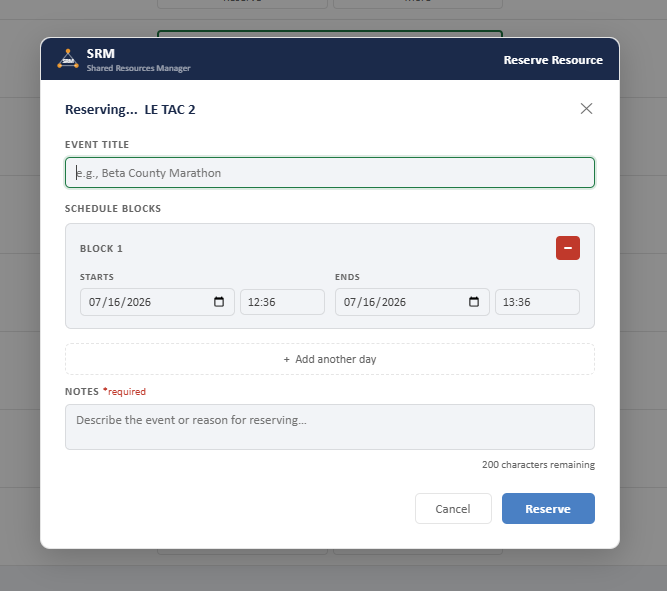
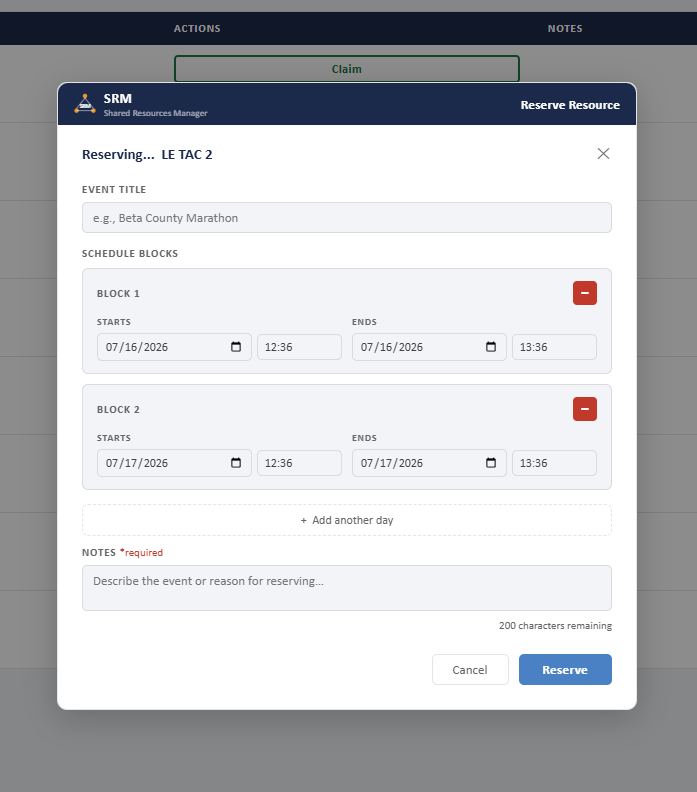
Clicking the reserve button opens a window that allows users to enter the specific date and time of the reservation. Since this is a reservation and not an in-progress event, brief notes about the reservation are required. Sometimes a reservation is needed for several days in a row — clicking "Add another day" duplicates the first reservation one day later, and can be clicked multiple times to add as many days as needed.
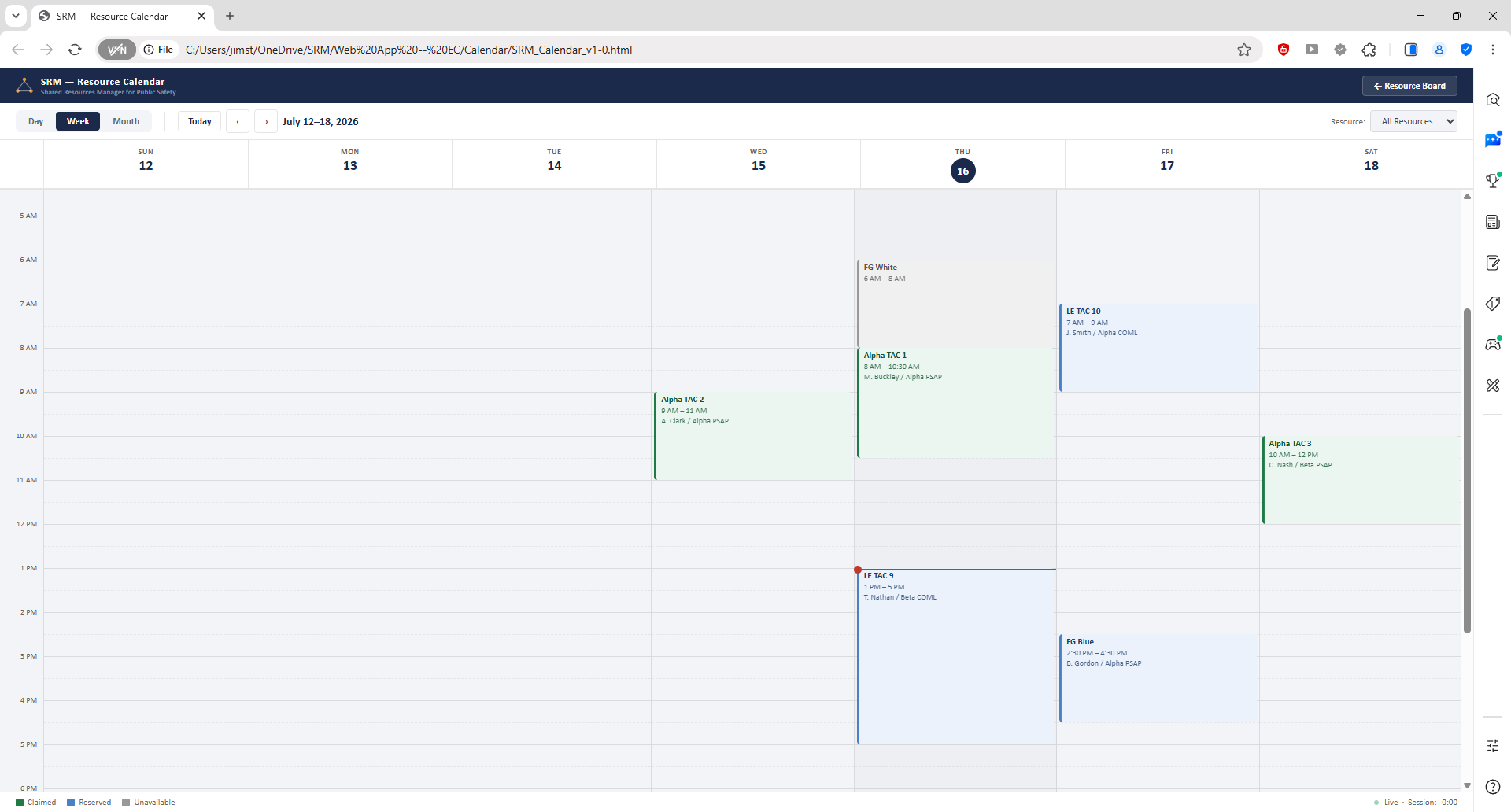
The calendar allows users to see all or specific resources by day, week, or month.
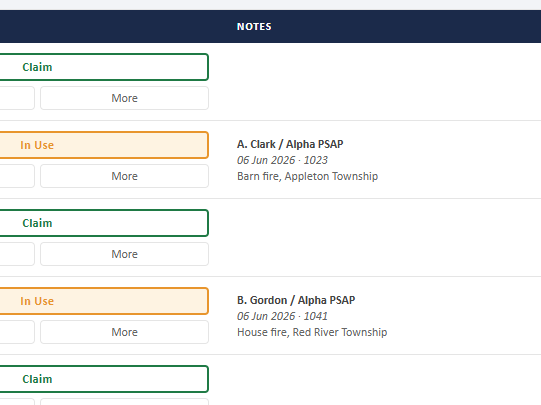
When a resource is reserved or marked out-of-service, notes will be visible to other SRM users.
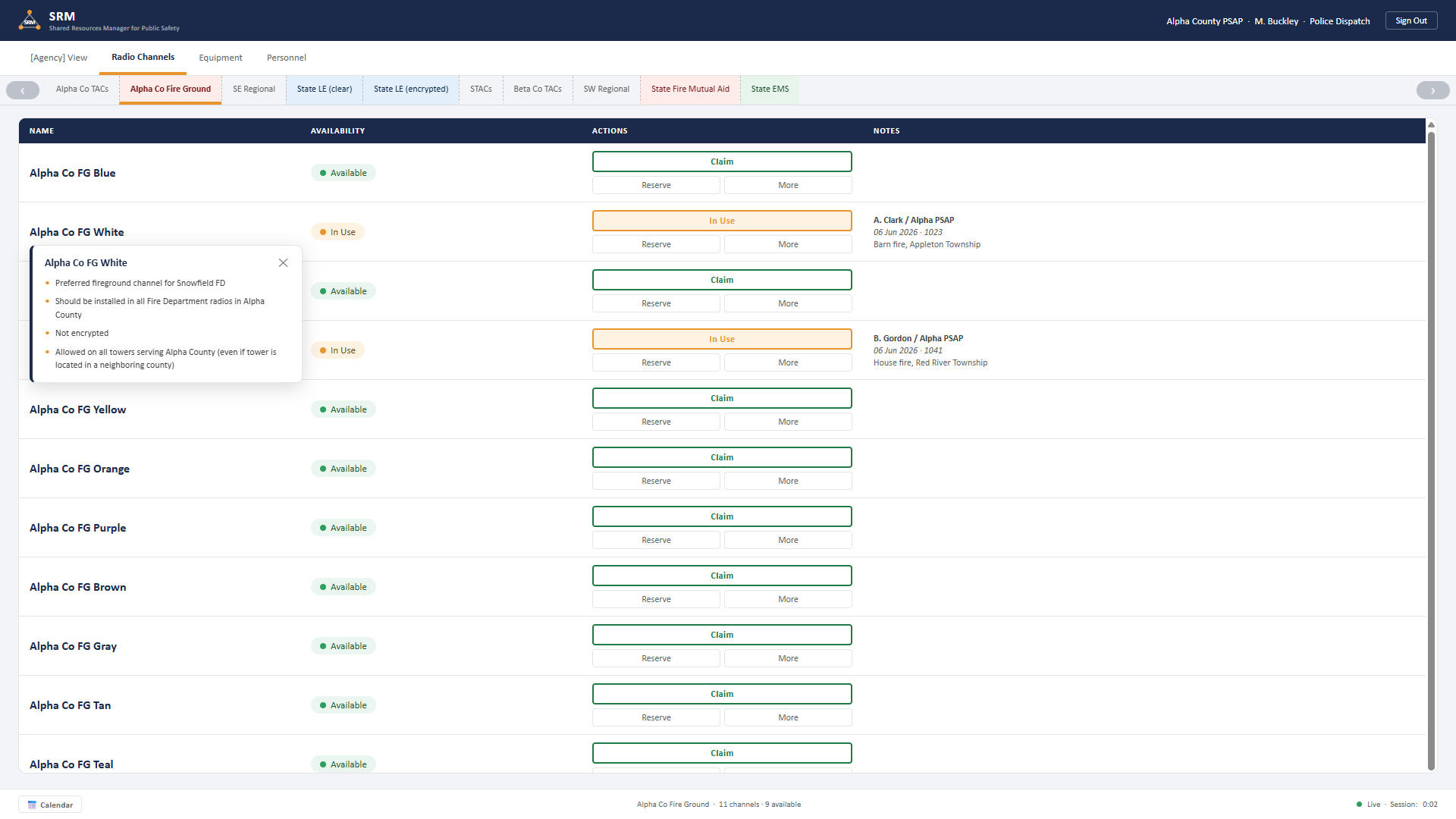
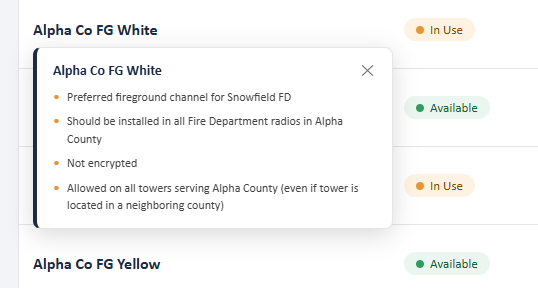
By clicking on a resource name, an information box will open providing information deemed important about the resource.
The QCW is a small window that users can place anywhere on their screens that will display the first-available resource of multiple types. Rather than finding and opening the main SRM Resource Table and searching for the first available resource, the QCW tells you. And with one click on the QCW that resource is claimed.
Want a live walkthrough instead of screenshots?